
Templates for Kindle Scribe
Every templated.shop product ships as a dedicated Kindle Scribe edition, sized to the exact panel of your device, so planners and notebooks fill the screen with no grey bars. Fully hyperlinked, vector-crisp at any zoom, and delivered the moment you buy.
Made for your exact Kindle Scribe screen
The Kindle Scribe has the sharpest panel we target: 1860×2480 at 300 ppi, against 226 ppi on most 10.3″ e-ink tablets. Our pages are pure vector, so that extra density shows up directly as finer rules and cleaner type rather than being wasted. The panel is 4:3, so the standard 445×594pt page fills it edge to edge with nothing cropped and no grey bars.
- Kindle Scribe10.2″ · 1860×2480 · 4:3 · Greyscale
- Made for the Kindle Scribe (10.2″, 300 ppi), the sharpest panel we target, with crisp vector text edge-to-edge. Load it by Send to Kindle or USB.
Panel specifications
| Device | Screen | Resolution | PPI | Colour | Aspect |
|---|---|---|---|---|---|
| Kindle Scribe (all generations)The sharpest panel we target, at 300 ppi | 10.2″ | 1860 × 2480 | 300 | Greyscale | 4:3 (0.75) |
Kindle Scribe templates in the catalog
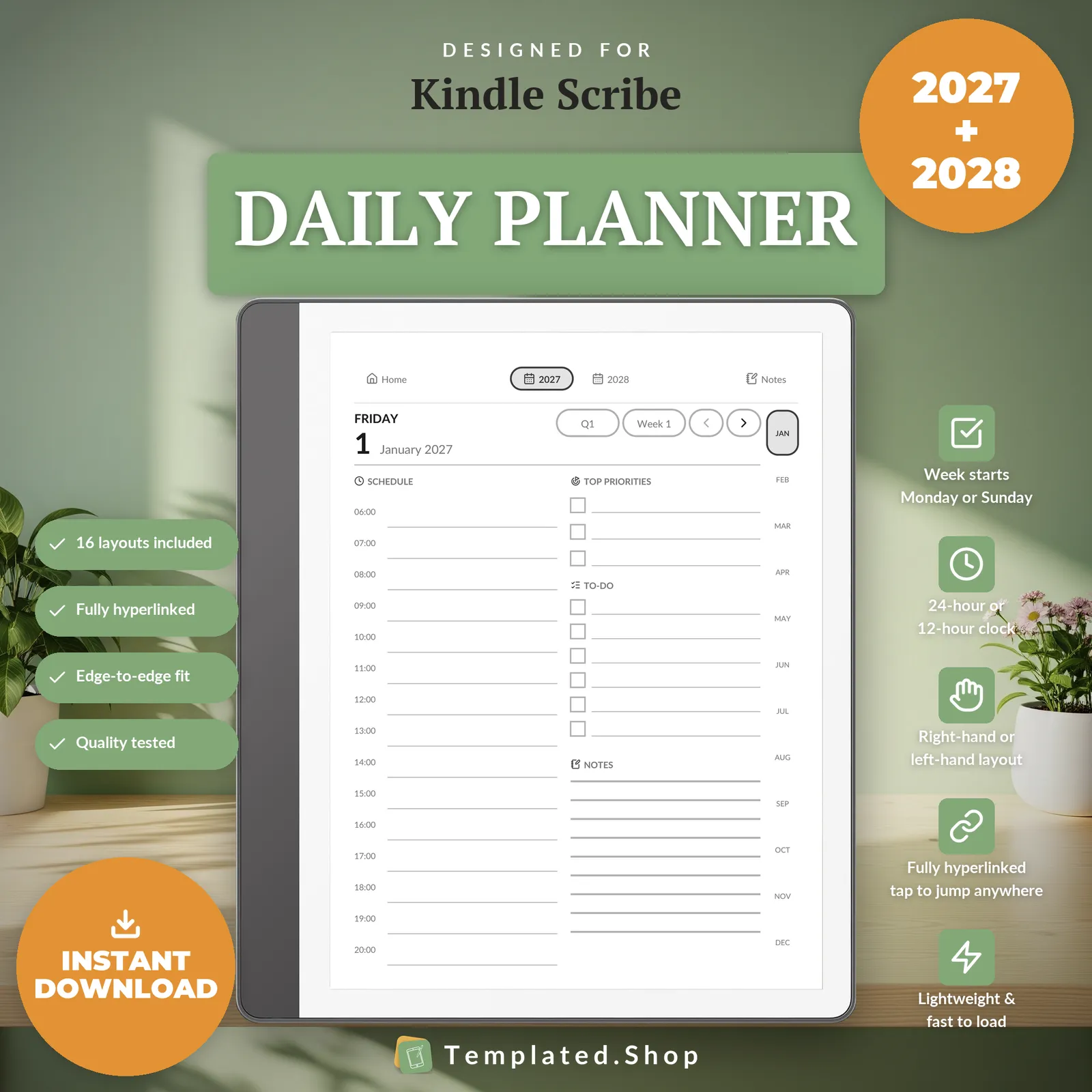
Planner
Daily Planner 2027–2028
$15.99 USD
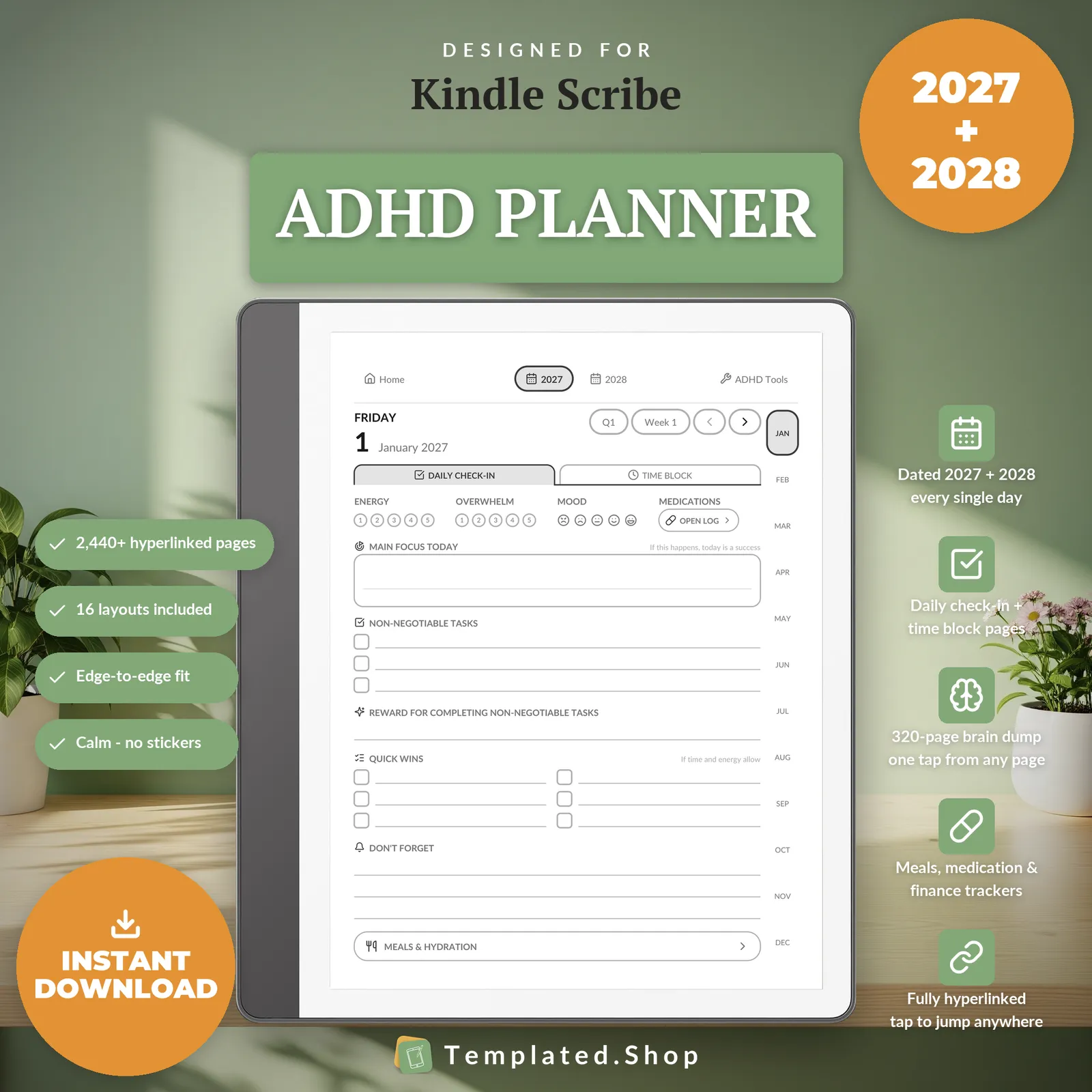
Planner
ADHD Planner 2027–2028
$9.99 USD
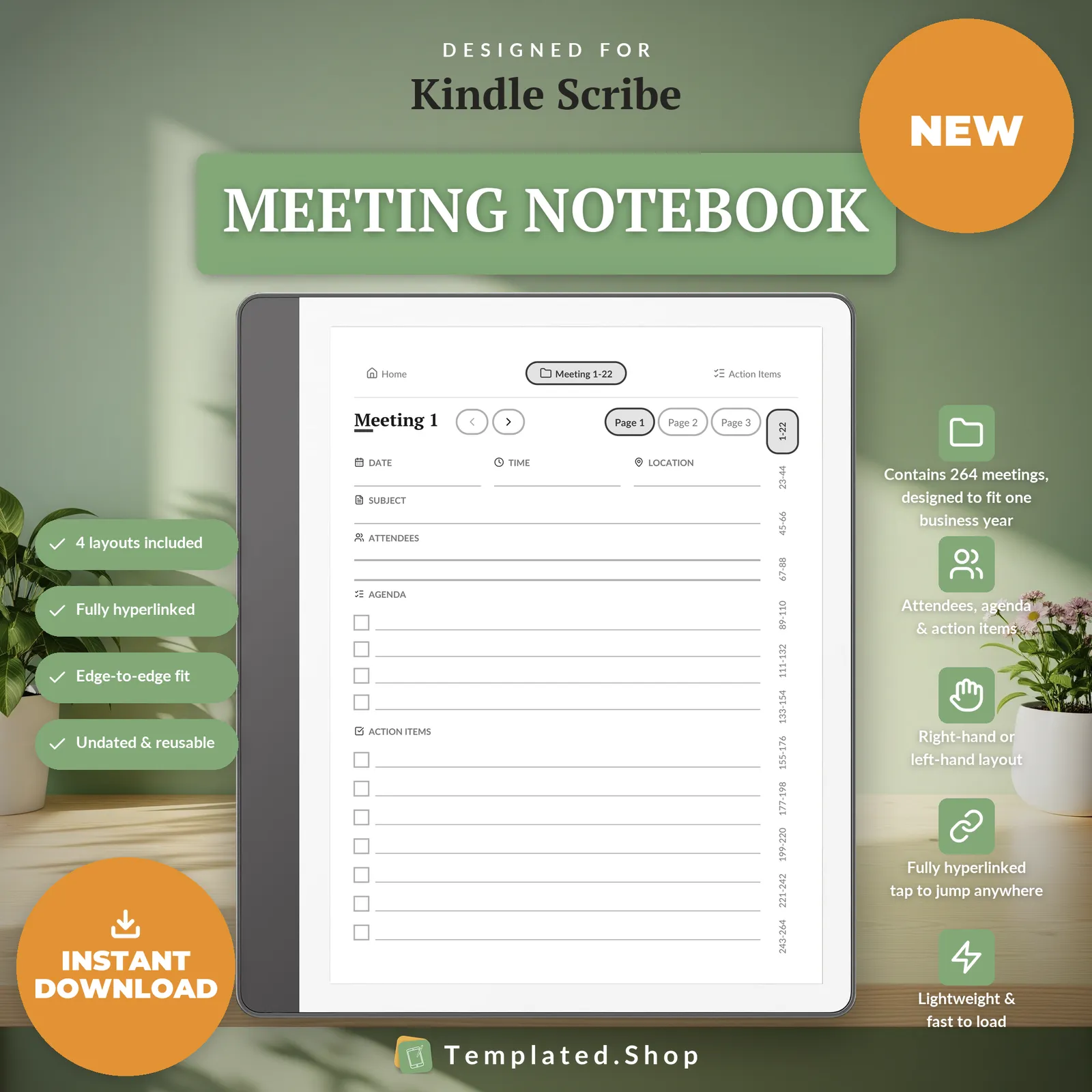
Notebook
Meeting Notebook
$7.99 USD
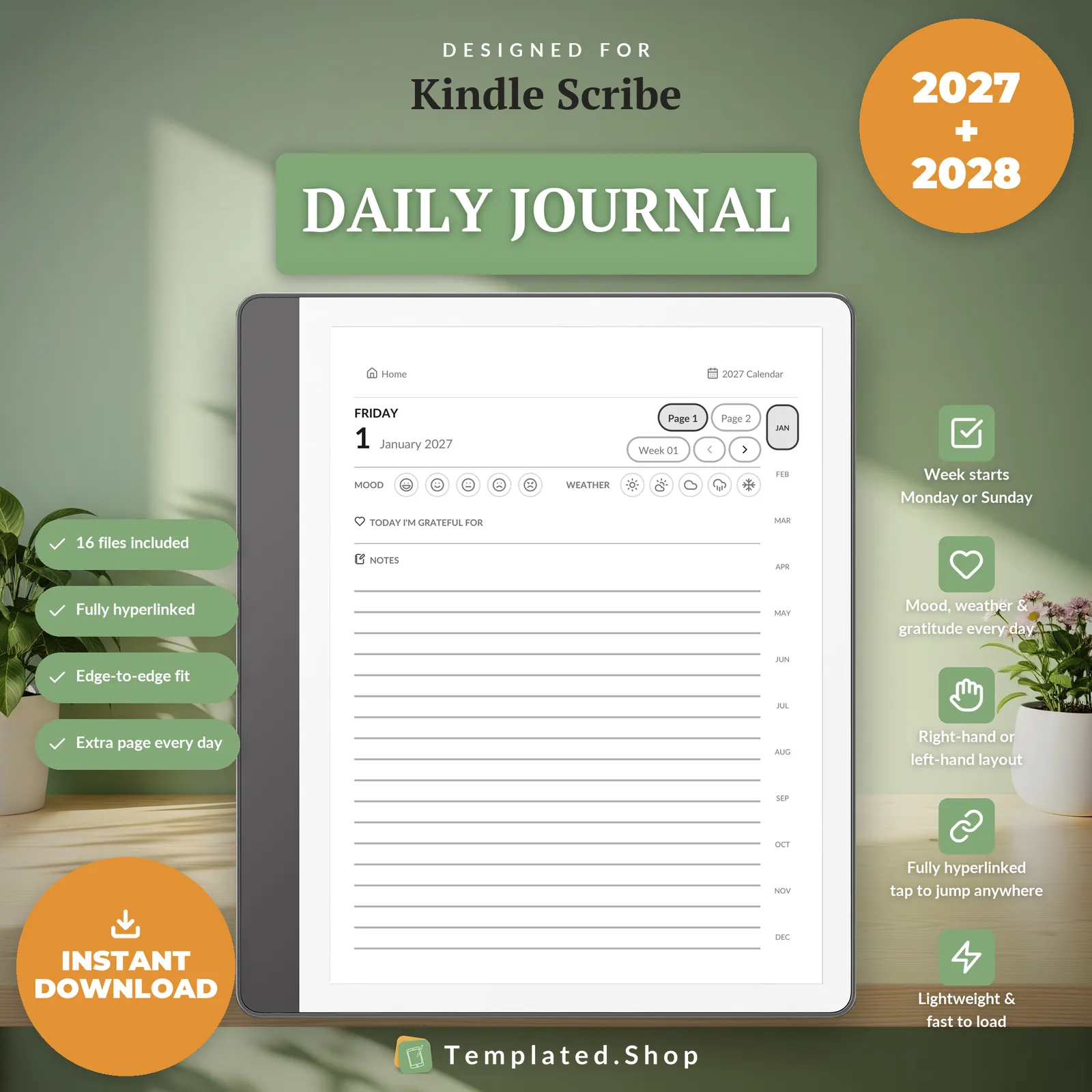
Journal
Daily Journal 2027–2028
$11.99 USD
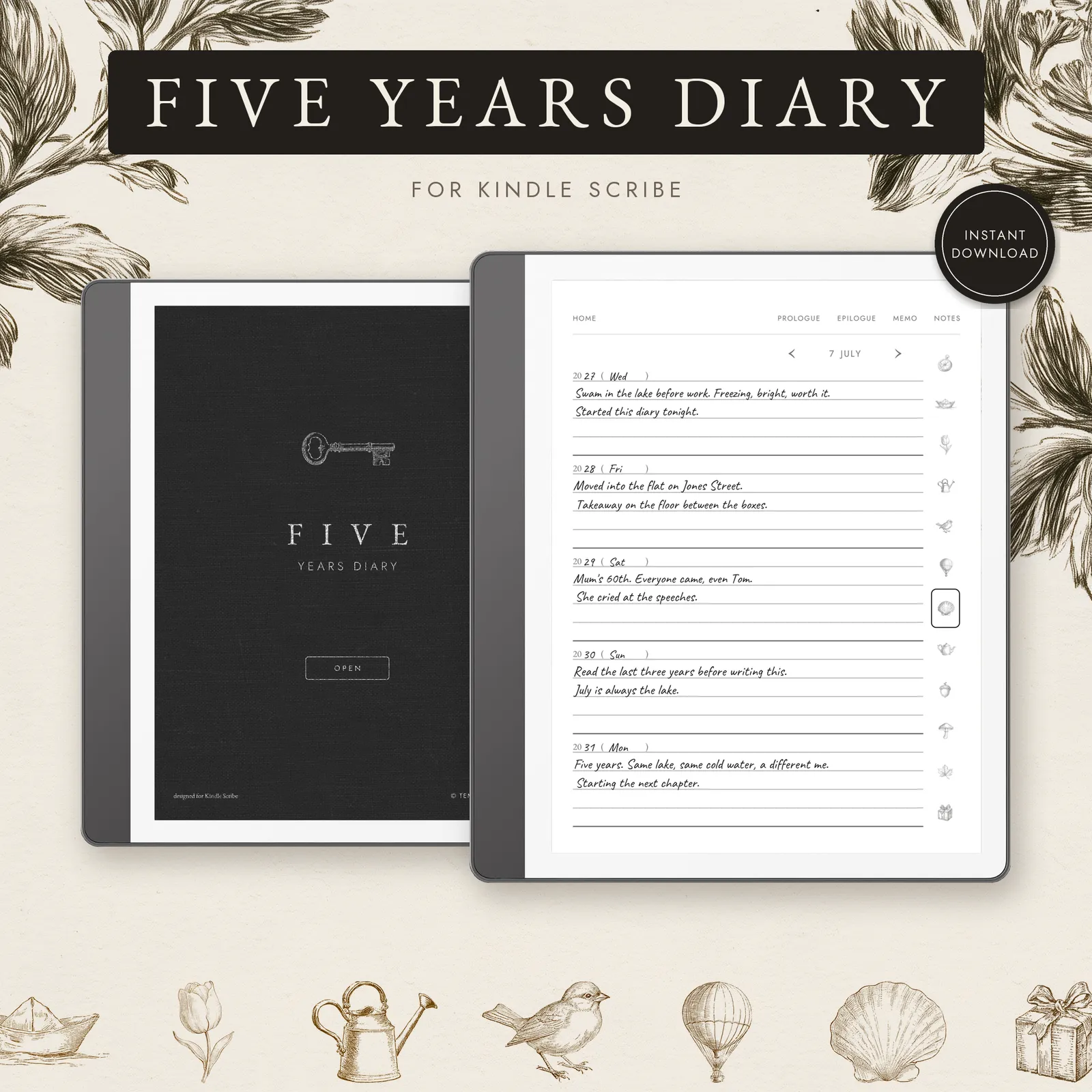
Journal
5 Year Journal
$7.99 USD
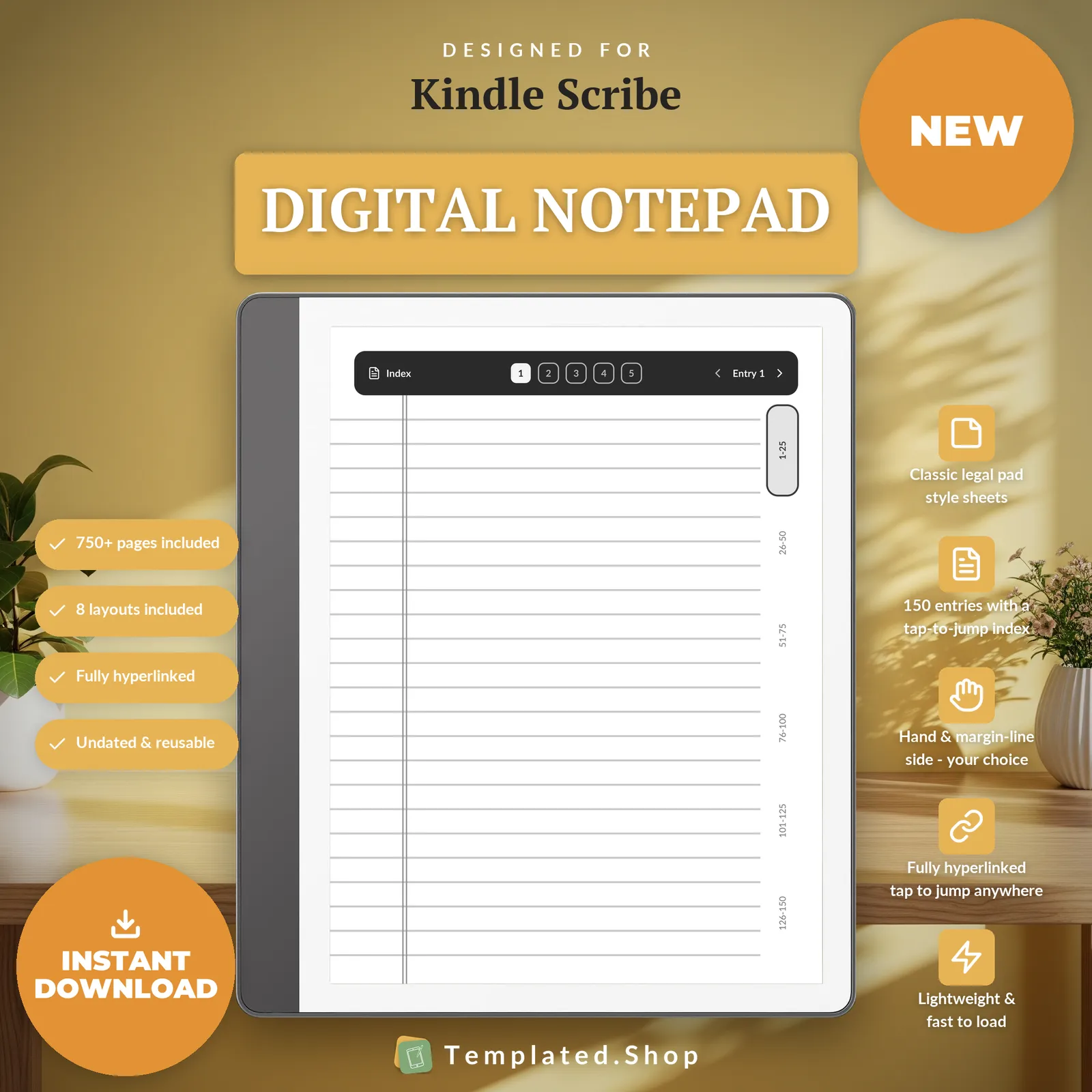
Notebook
Digital Notepad
$7.99 USD
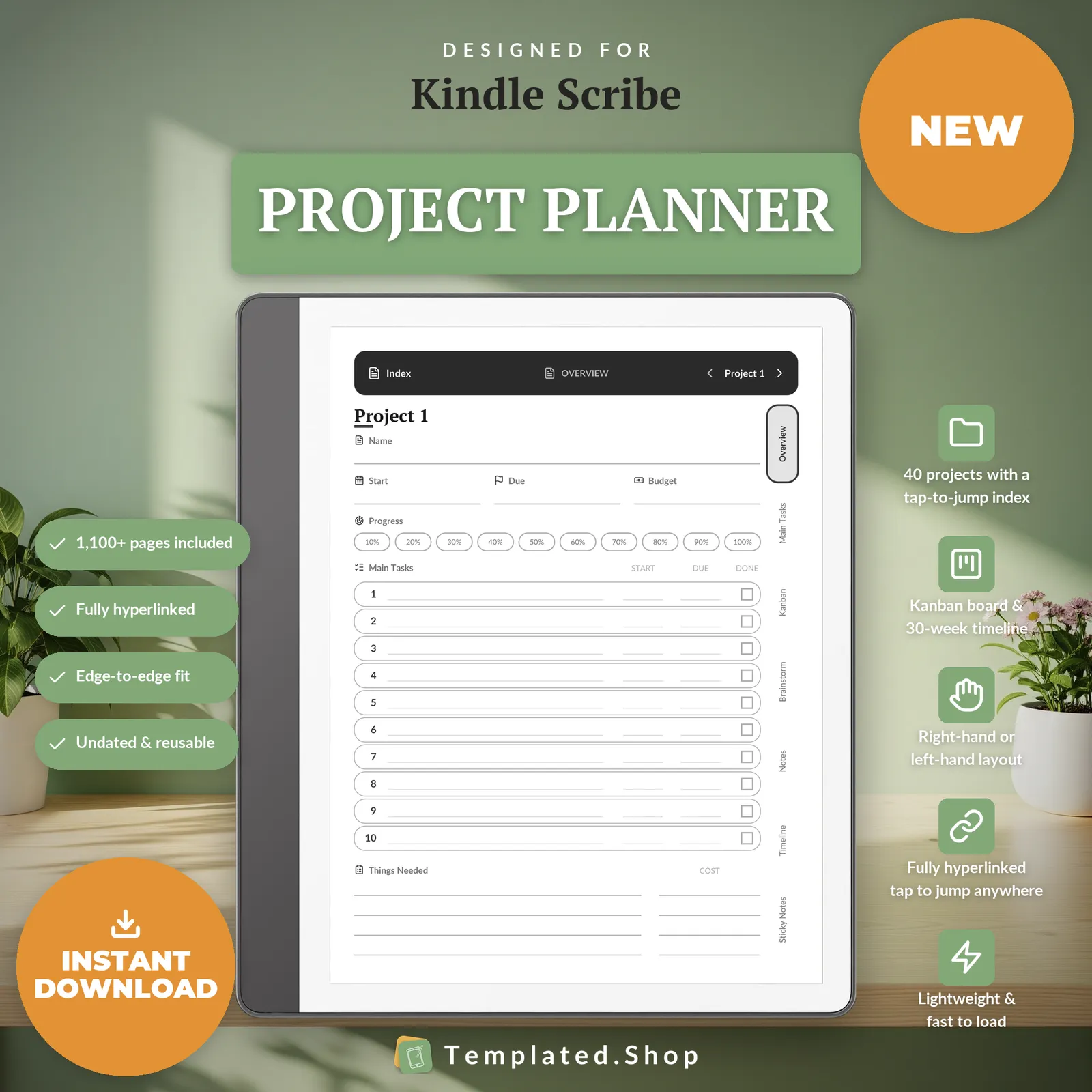
Planner
Project Planner
$9.99 USD
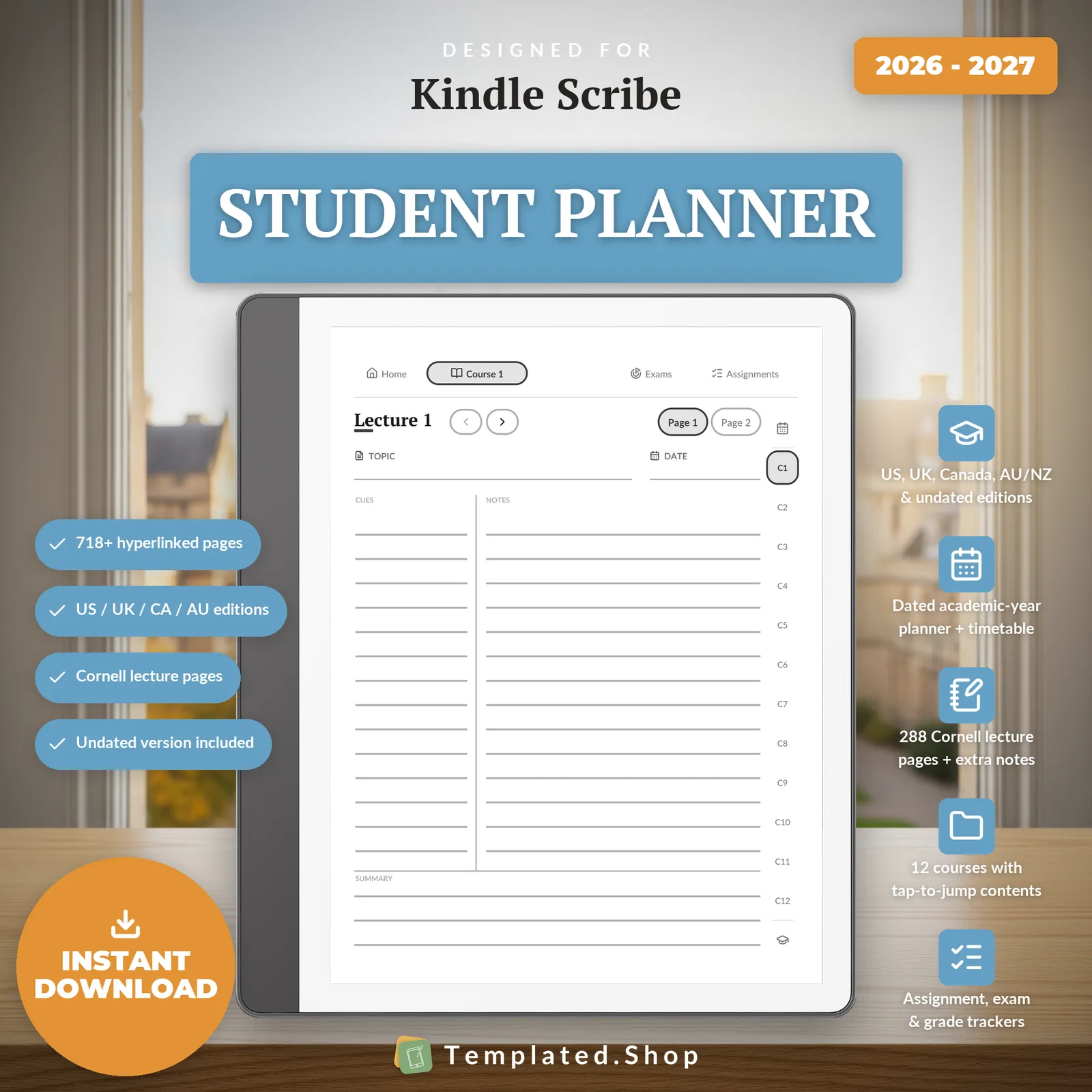
Planner
Student Planner with Cornell Notes
$8.99 USD
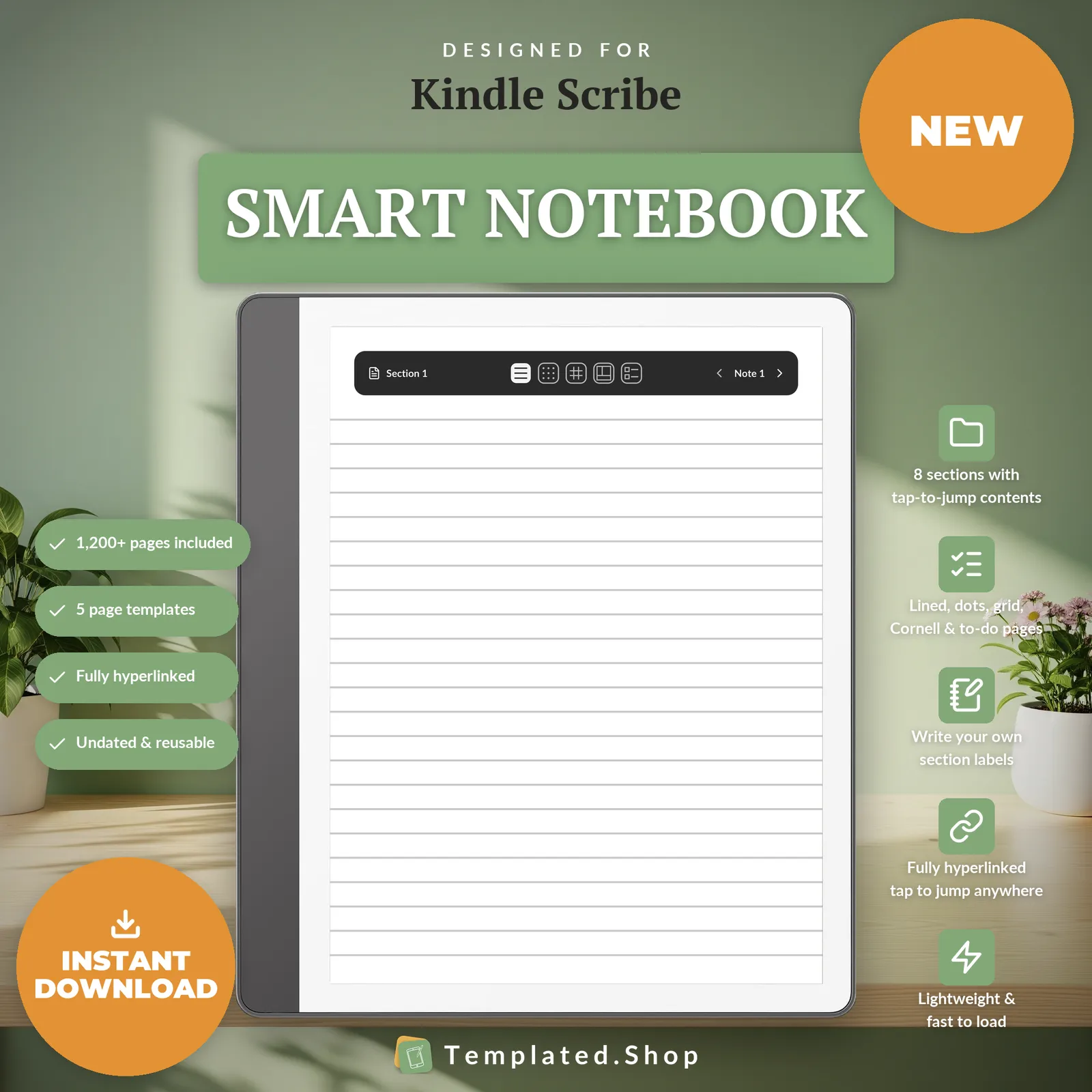
Notebook
Smart Notebook
$9.99 USD
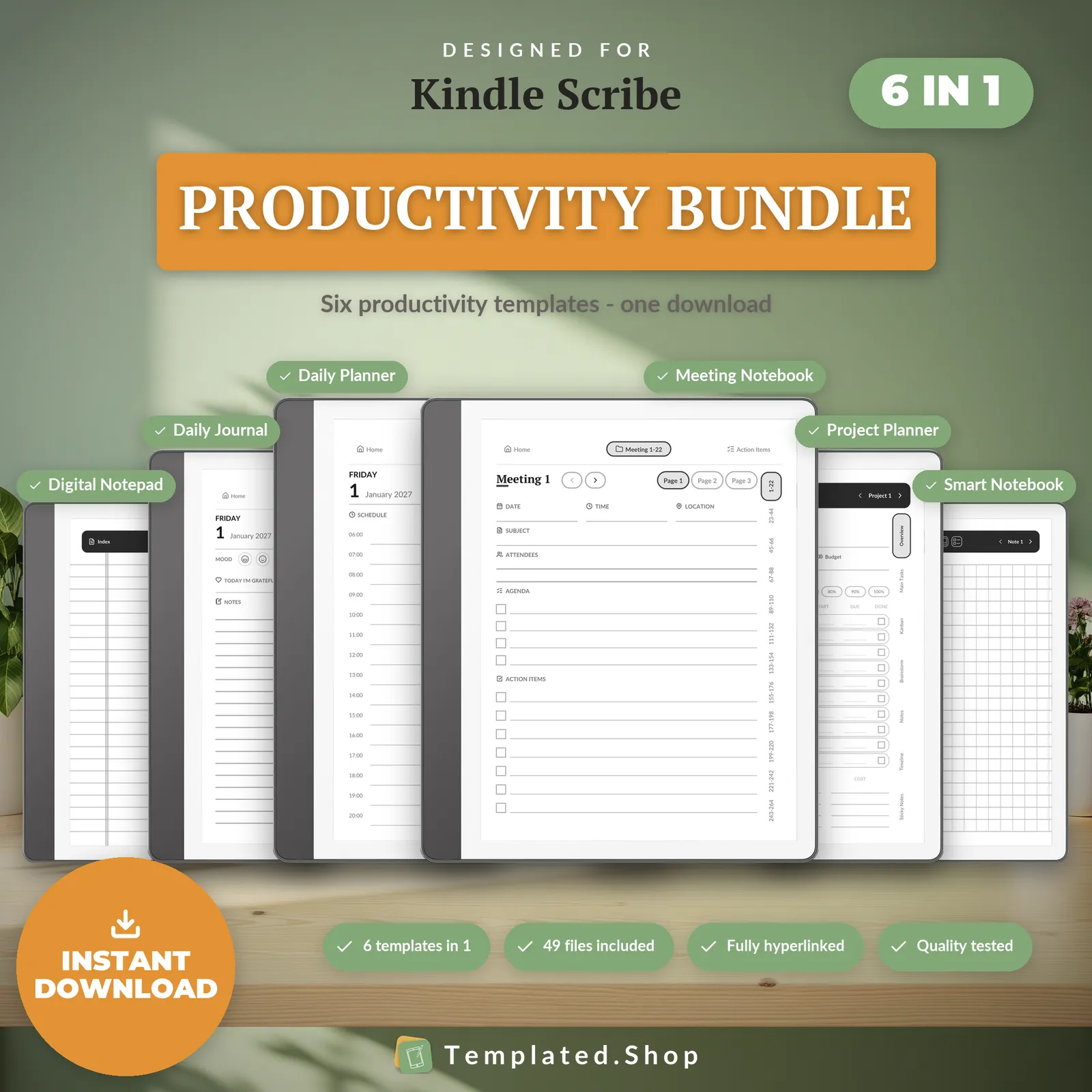
Bundle
Productivity Bundle 2027–2028
$24.99 USD
How your Kindle Scribe handles PDF files
- Getting the file on
- Via Send to Kindle (web, app or email), or a USB cable. Step-by-step below.
- Tap links
- Internal links fire in the document reader, which is what the planner's tab strip and year-to-day navigation use. Tap with your finger. With the pen, links only follow when the pointer tool is active.
- Duplicating a page
- No. Adding, duplicating and reordering pages works inside native Kindle notebooks, not inside an imported PDF. Every edition ships an extra notes page behind each day and each week, so the writing space is built in rather than added later.
Across the devices we sell to: reMarkable and iPad can duplicate a page inside a PDF; Supernote and Kobo cannot; Boox can insert a blank page but not copy an existing one.
Device behaviour verified against Amazon’s documentation, July 2026.
Getting a planner onto your Kindle Scribe
- Send to Kindle: go to the Send to Kindle web page or use the app, upload the PDF, and it syncs to your library.
- Or USB: connect the Scribe to your computer, and copy the PDF into the documents folder.
- Open it from your Library as a document, not as a notebook, so the tap links stay live.
What goes wrong
- The USB answer changed in early 2026. On Kindle software 5.19.2 and newer you can write on a PDF however you transferred it; on older software, USB-copied PDFs are view-only and Send to Kindle is the route that lets you write. Check Settings → Device Options → Software updates if writing is greyed out.
- If you sideloaded the file before updating the software, copy it across again. Files added under the old behaviour may not pick up the new one.
- Do not let Send to Kindle convert the file to Kindle format. Conversion reflows the document, which destroys a fixed planner layout and the links with it. Send it as a PDF.
- Tap links with your finger. The pen only follows a link when the pointer tool is selected.
How we know this
We build and test the files, not the tablets. Everything above about how your Kindle Scribe handles PDFs comes from Amazon’s own documentation, checked in July 2026. We don’t own every device on this page and won’t pretend to.
What we do test is the file. Every page is rendered at the panel’s true pixel resolution before release, and every internal link is resolved automatically: 20,220 of them in the 889-page daily planner, none broken. If something behaves differently on your device, tell us and we’ll correct this page.
Kindle Scribe questions
Can I write on the planner if I copy it over by USB?
On Kindle software 5.19.2 or newer (February 2026), yes. Amazon enabled annotation of sideloaded PDFs across every Scribe generation. On older software, USB copies are view-only and you need Send to Kindle to write on them. If you are unsure, update first: Settings → Device Options → Software updates.
Should I use Send to Kindle or USB?
Either works on current software. Send to Kindle is less fiddly and syncs to your other Kindle apps; USB is faster for a large file and needs no account round-trip. The one thing that matters either way is that it arrives as a PDF, not a converted Kindle file.
Why is my planner reflowing like an ebook?
Because it was converted rather than sent as a PDF. Send to Kindle can convert documents to Kindle format, which reflows the text: fine for a novel, fatal for a planner, because the layout and the links both go. Re-send it as a PDF and it will stay fixed.
Does the 300 ppi screen actually make a difference?
For this kind of file, yes. Every page is vector, not an image, so it renders at whatever the panel can resolve. Hairline rules, dot grids and small tab labels stay clean on the Scribe where they can look slightly soft at 226 ppi.
Can I duplicate a page for more writing room?
Not inside a PDF on the Scribe: page management is a native-notebook feature. It is designed around that: there is an extra notes page behind every day and every week already, so you are not relying on duplication for space.
All 10 Kindle Scribe editions are above. See the full catalog or ask us a question.
Other devices
- reMarkable templates
- Supernote templates
- Boox templates
- Kobo templates
- iPad templates
- Browse all templates
- Free printable paper
Bought the wrong device edition? We’ll swap it free; just reply to your receipt email.