
Templates for reMarkable
Every templated.shop product ships as a dedicated reMarkable edition, sized to the exact panel of your device, so planners and notebooks fill the screen with no grey bars. Fully hyperlinked, vector-crisp at any zoom, and delivered the moment you buy.
Made for your exact reMarkable screen
Two of the three current reMarkable panels are 4:3, so one 445×594pt page fills the reMarkable 2, Paper Pure and Paper Pro edge to edge: larger and in colour on the Pro, identical geometry underneath. The Paper Pro Move is the exception: 954×1696 is 16:9, and a 4:3 page fitted to that width leaves roughly 30% of the screen empty. So the Move gets its own 445×791pt page rather than a letterboxed version of everyone else's.
- reMarkable 2 & Paper Pure10.3″ · 1404×1872 · 4:3 · Greyscale
- Made for the reMarkable 2 and Paper Pure (10.3″). Fills the Carta panel edge-to-edge in a clean greyscale tuned for e-ink.
- reMarkable Paper Pro11.8″ · 1620×2160 · 4:3 · Colour
- Made for the reMarkable Paper Pro (11.8″). Fills the larger screen 1:1 with a restrained colour accent tuned for E Ink Gallery 3.
- reMarkable Paper Pro Move7.3″ · 954×1696 · 16:9 · Colour
- Shaped for the Move's taller 16:9 screen. Fills it top-to-bottom, with a roomier compact layout, instead of the grey bars 4:3 planners leave.
Panel specifications
| Device | Screen | Resolution | PPI | Colour | Aspect |
|---|---|---|---|---|---|
| reMarkable 2 | 10.3″ | 1404 × 1872 | 226 | Greyscale | 4:3 (0.75) |
| reMarkable Paper PureSame panel as the reMarkable 2, so one file serves both | 10.3″ | 1404 × 1872 | 226 | Greyscale | 4:3 (0.75) |
| reMarkable Paper ProE Ink Gallery 3 colour, with a frontlight | 11.8″ | 1620 × 2160 | 229 | Colour | 4:3 (0.75) |
| reMarkable Paper Pro MoveThe only 16:9 panel we target, so it gets its own page geometry | 7.3″ | 954 × 1696 | 264 | Colour | 16:9 (0.5625) |
reMarkable templates in the catalog
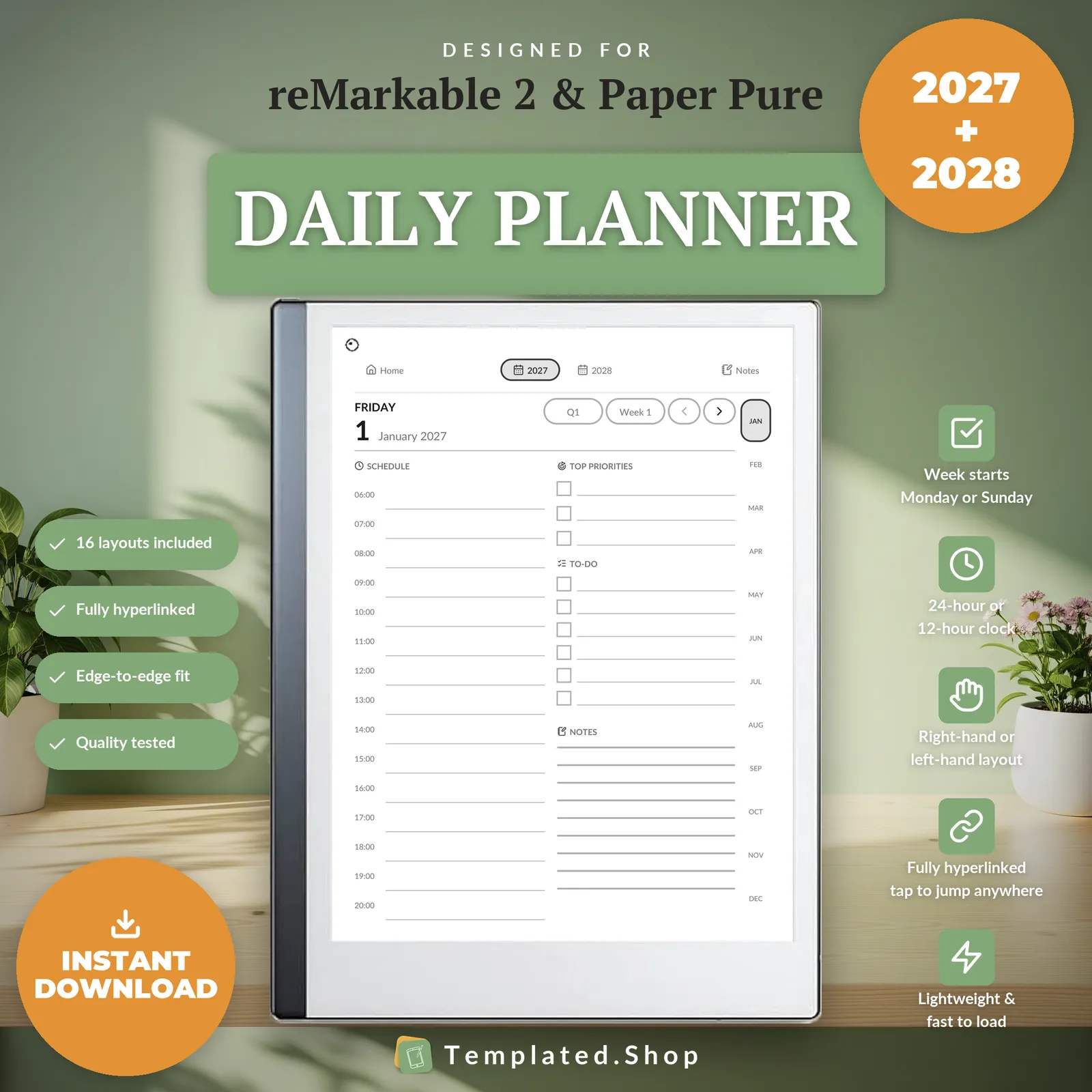
Planner
Daily Planner 2027–2028
$15.99 USD
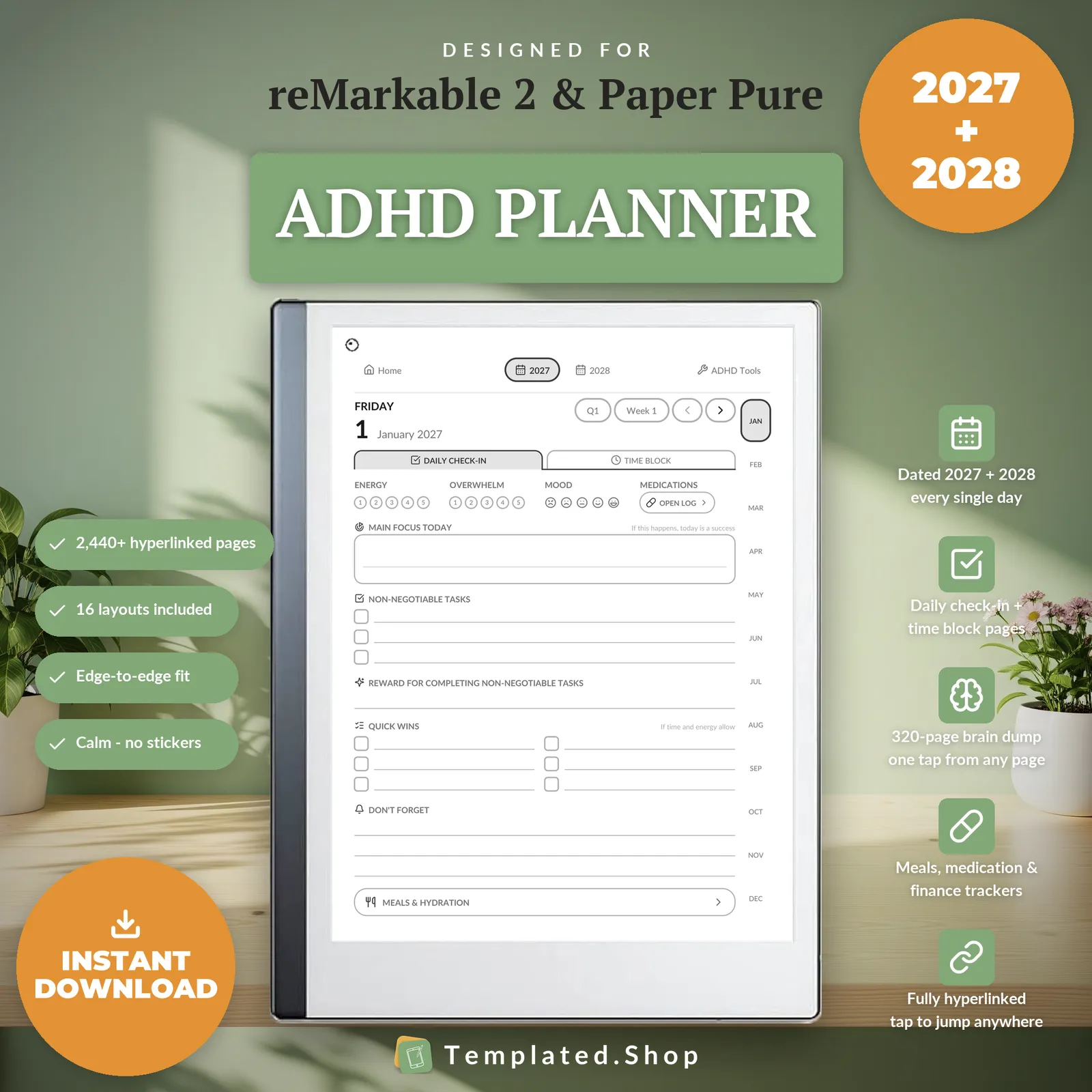
Planner
ADHD Planner 2027–2028
$9.99 USD
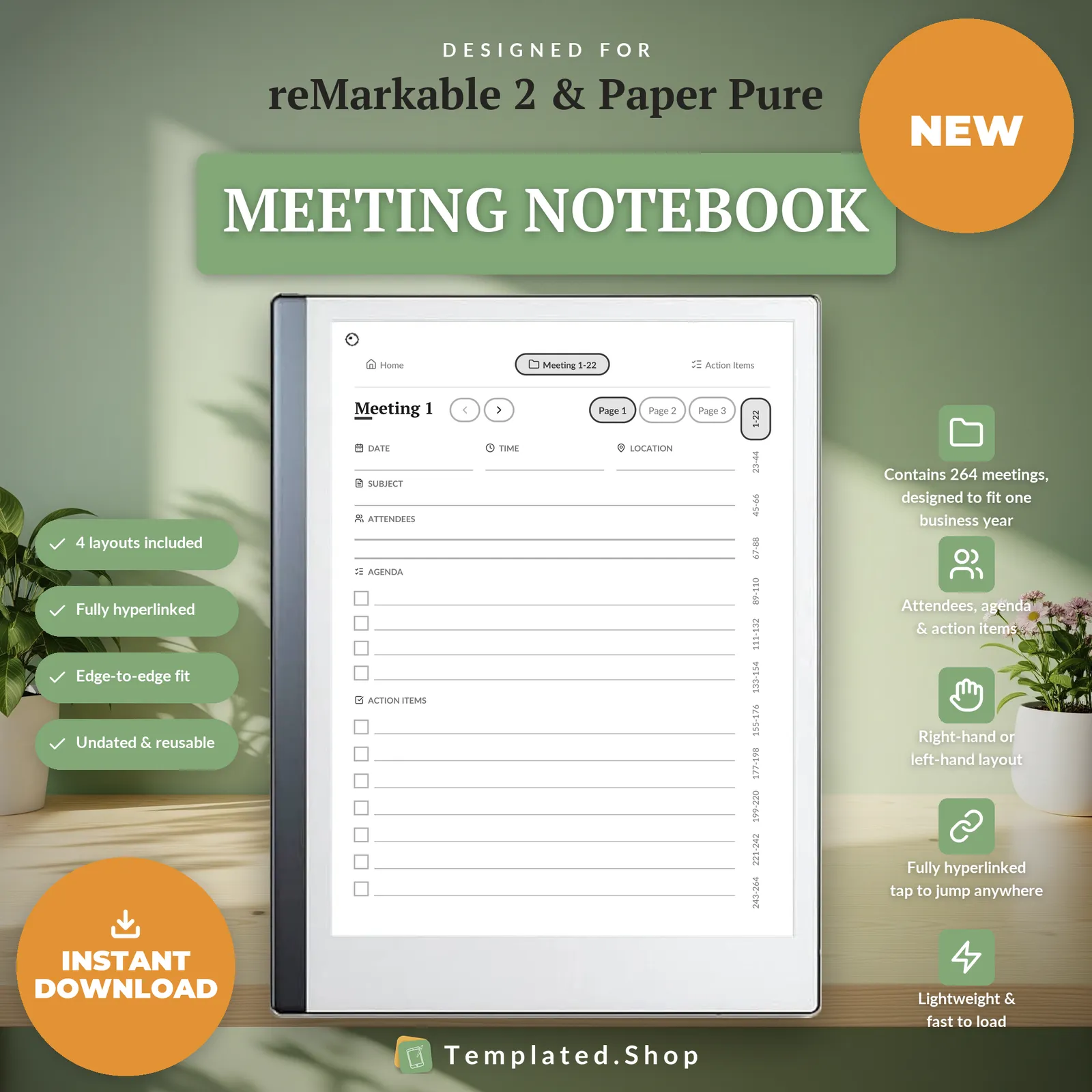
Notebook
Meeting Notebook
$7.99 USD
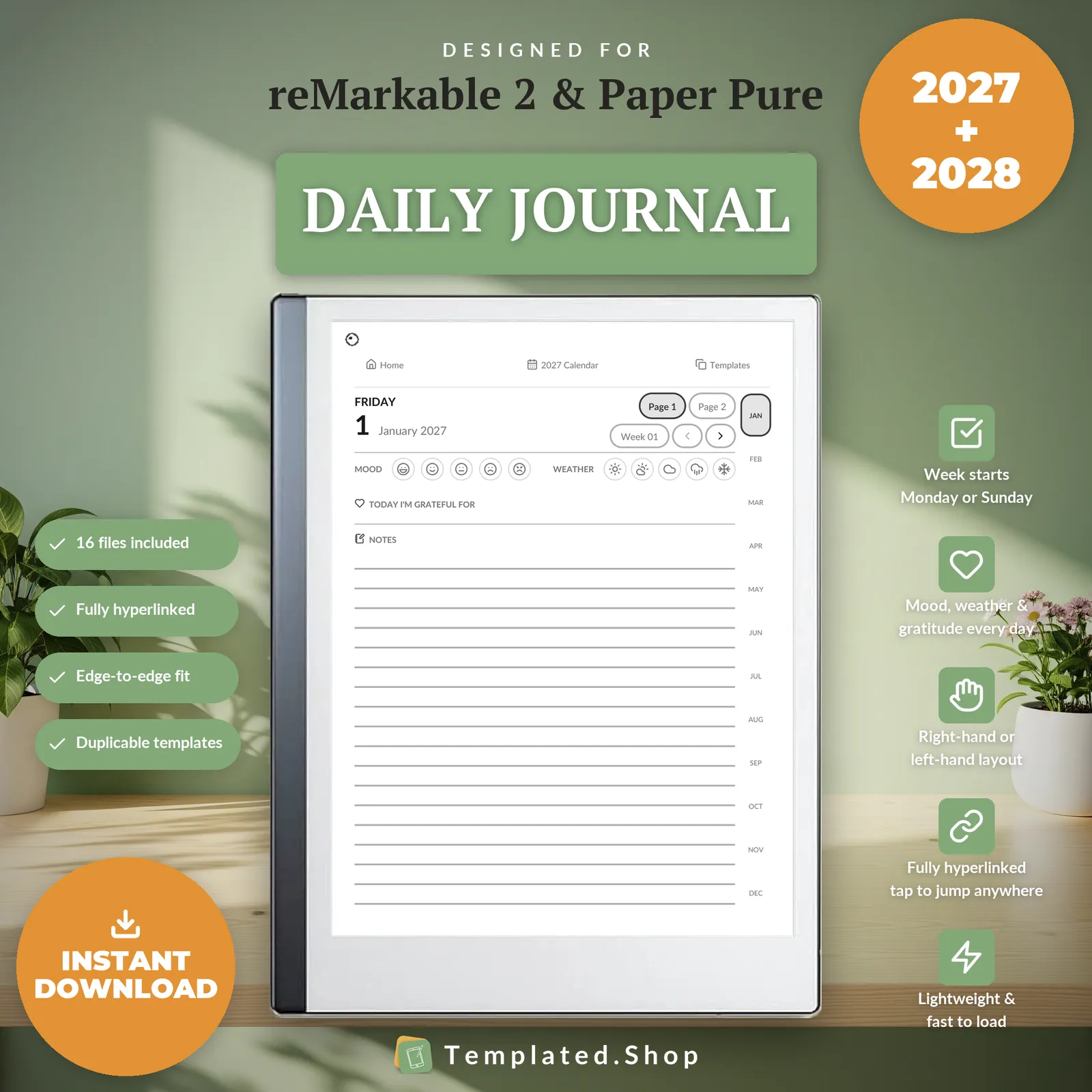
Journal
Daily Journal 2027–2028
$11.99 USD
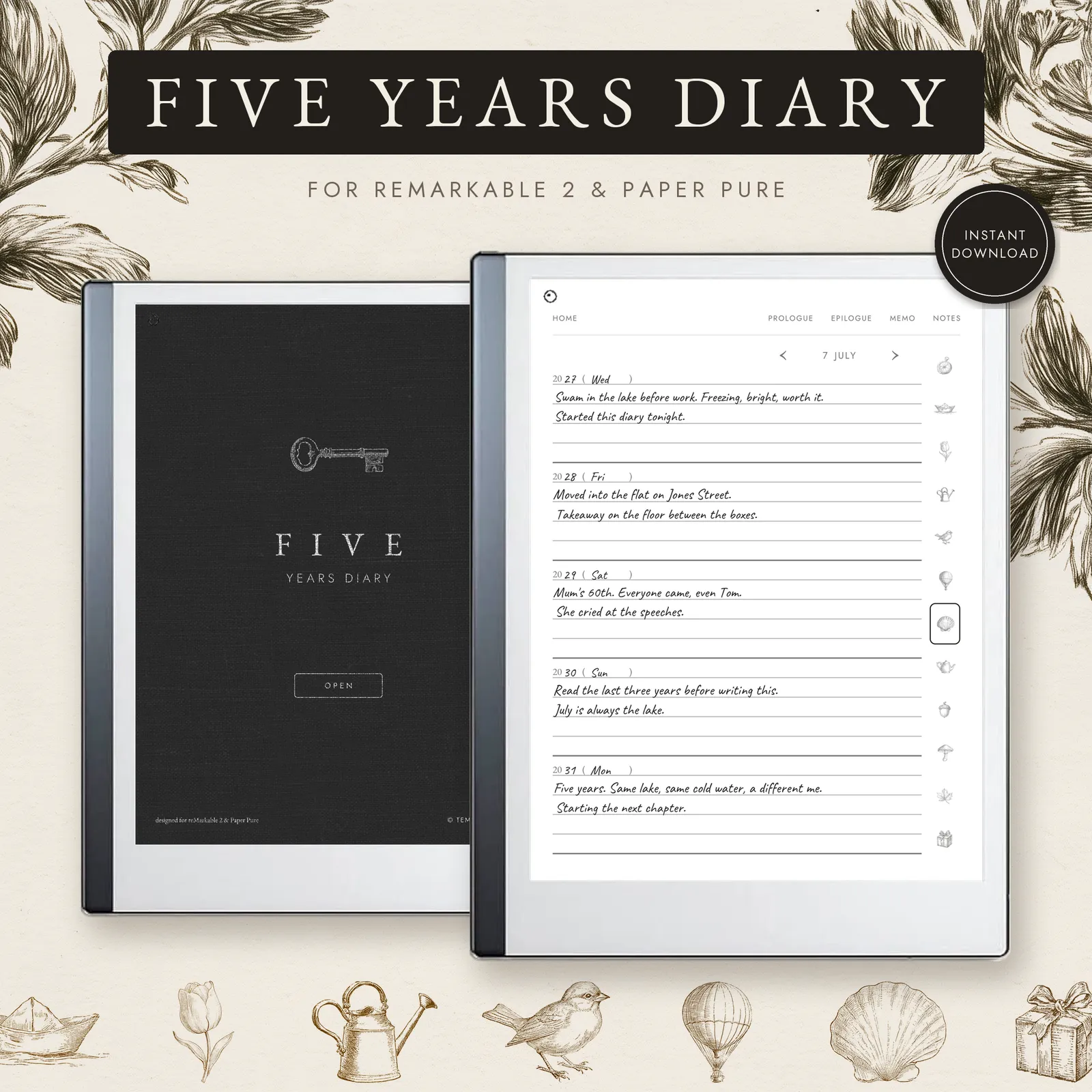
Journal
5 Year Journal
$7.99 USD
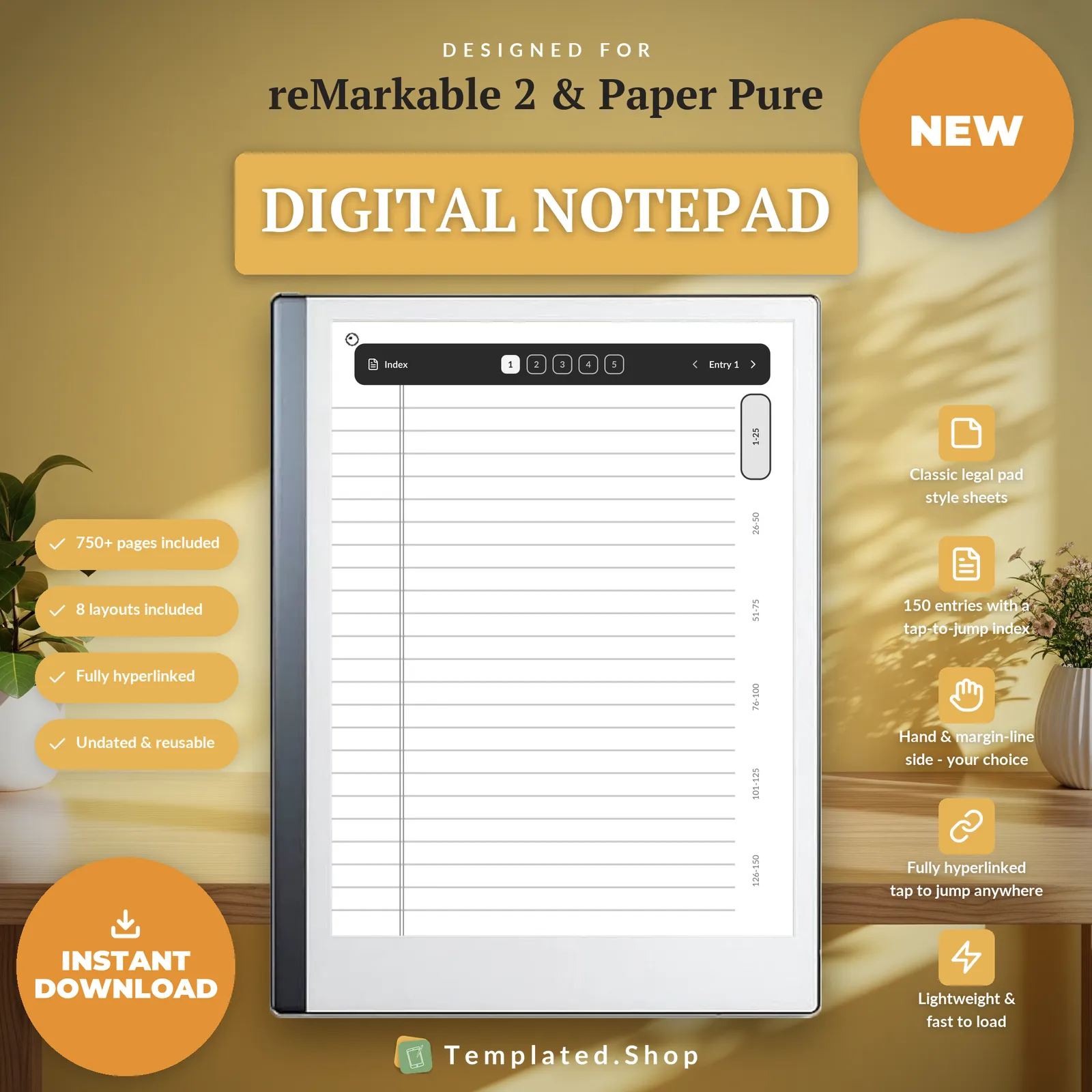
Notebook
Digital Notepad
$7.99 USD
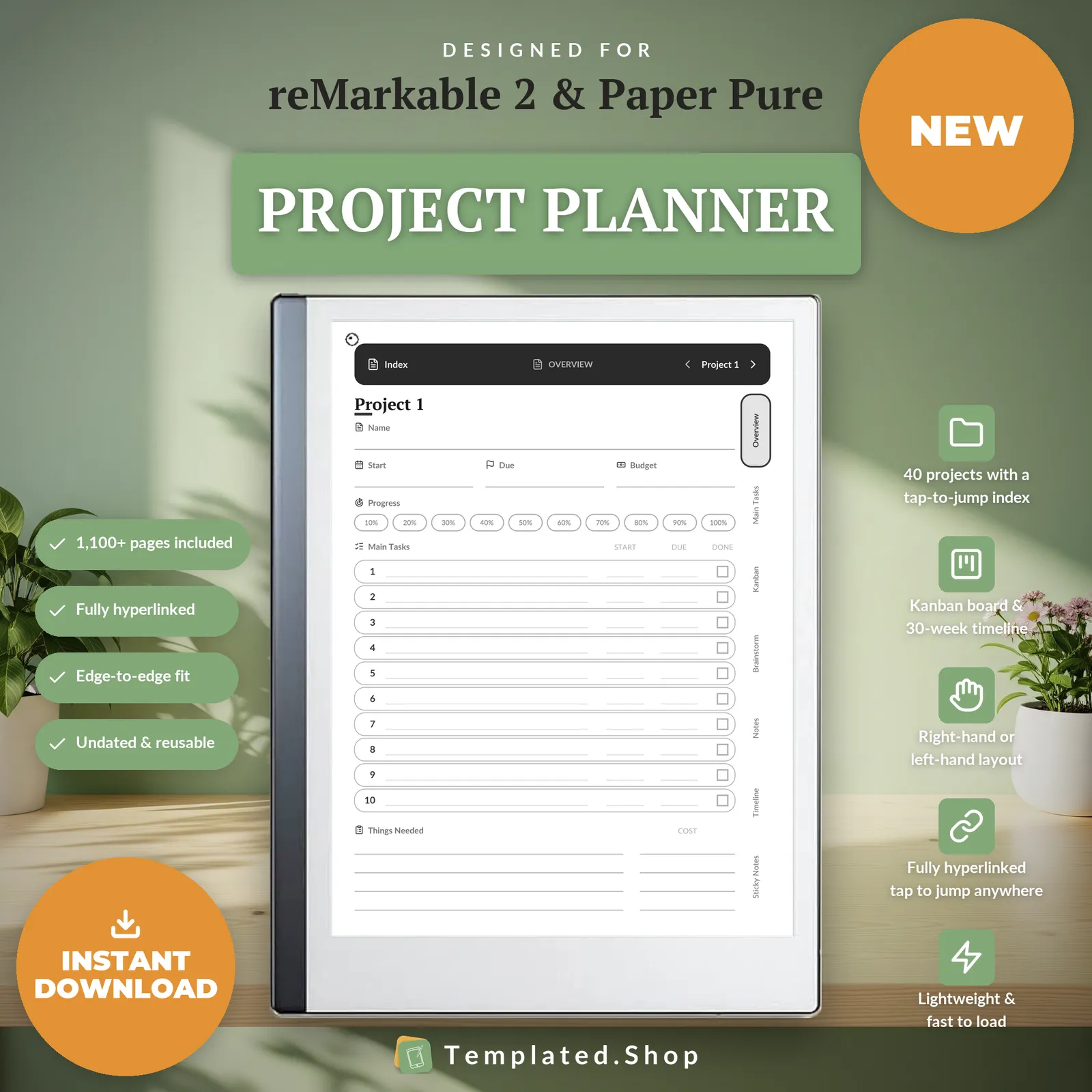
Planner
Project Planner
$9.99 USD
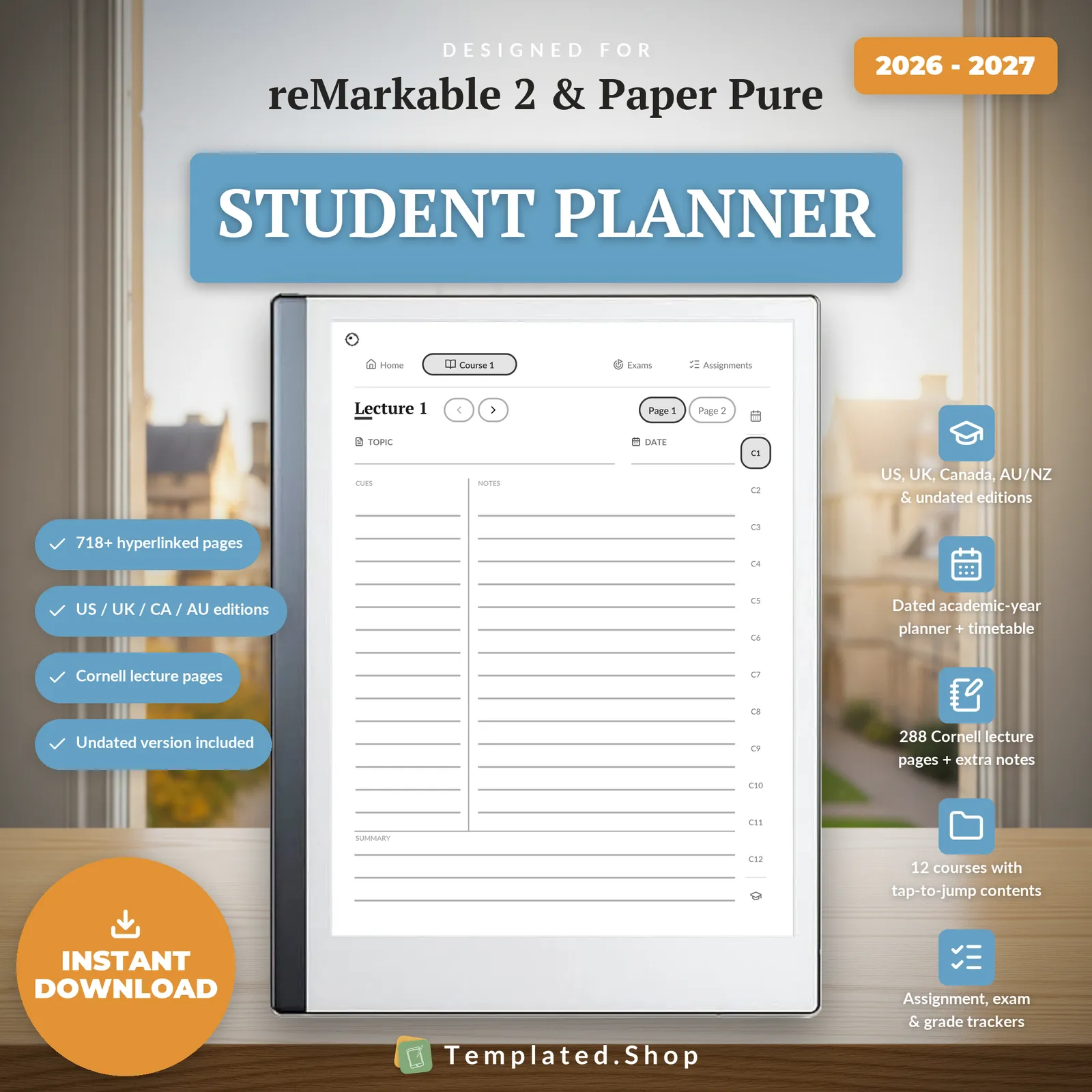
Planner
Student Planner with Cornell Notes
$8.99 USD
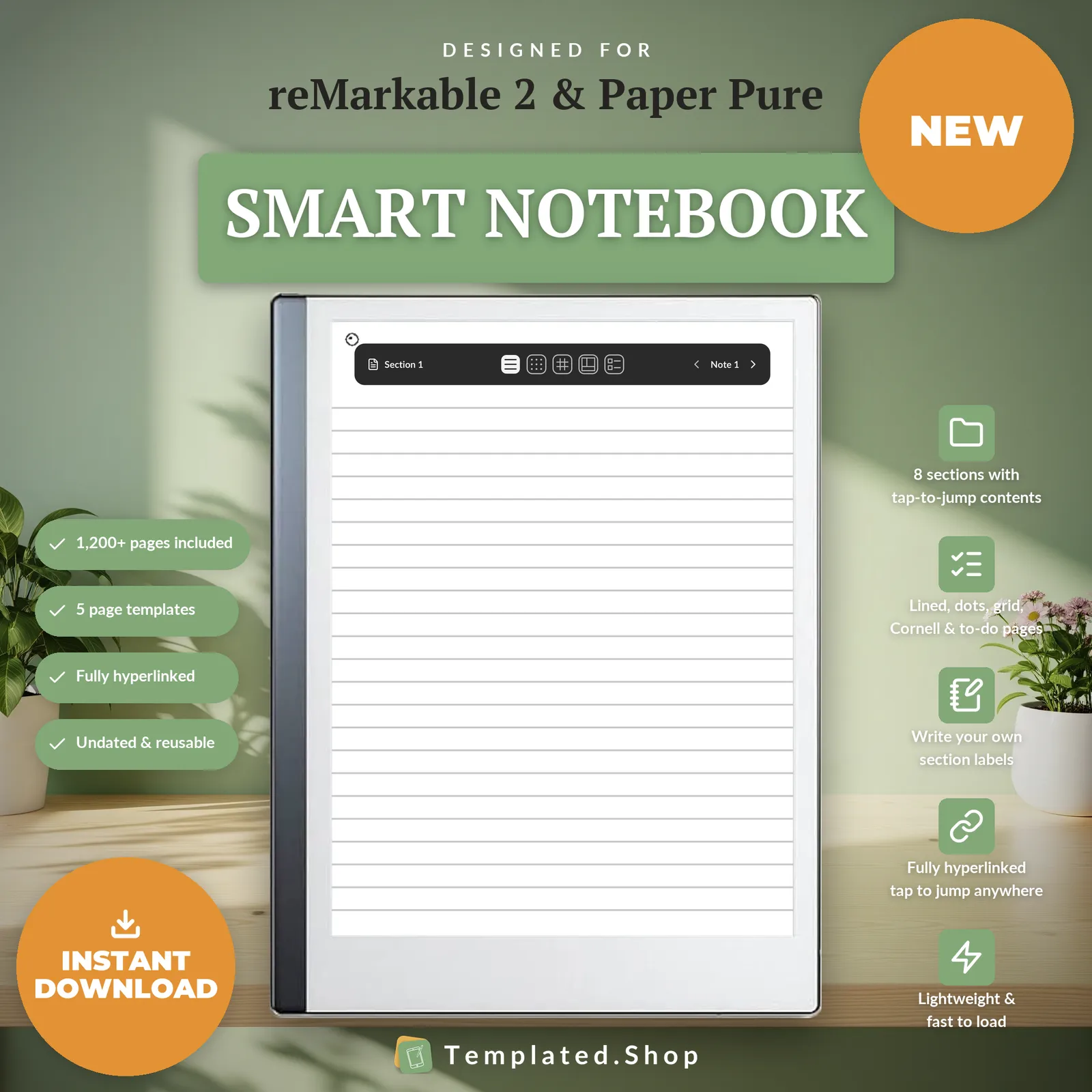
Notebook
Smart Notebook
$9.99 USD
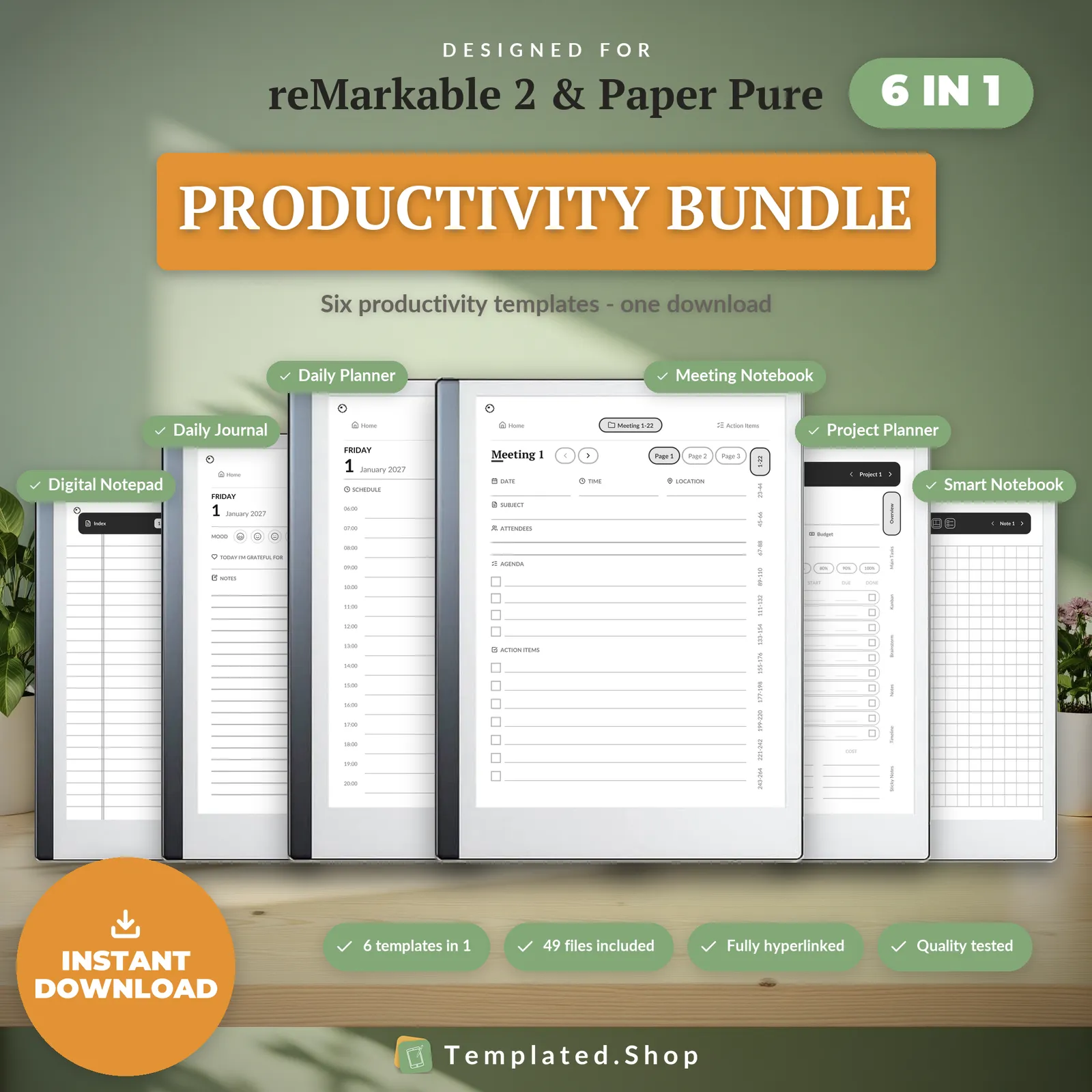
Bundle
Productivity Bundle 2027–2028
$24.99 USD
How your reMarkable handles PDF files
- Getting the file on
- Via the reMarkable desktop or mobile app, or read.remarkable.com. Step-by-step below.
- Tap links
- Tap-to-jump works in the reader. reMarkable ships internal PDF links as a named feature, and it is what the year → quarter → month → week → day navigation relies on. Use your finger; the pen writes rather than follows links.
- Duplicating a page
- Yes. reMarkable is the only e-ink family we sell to that can duplicate a page inside an imported PDF: page overview, long-press the page, Duplicate. That is why the Daily Journal's reflection-templates section ships in the reMarkable editions (and the iPad one, whose note apps can do the same) and not on the other e-ink tablets.
Across the devices we sell to: iPad can duplicate a page inside a PDF; Kindle Scribe, Supernote and Kobo cannot; Boox can insert a blank page but not copy an existing one.
Device behaviour verified against reMarkable’s documentation, July 2026.
Getting a planner onto your reMarkable
- Open the reMarkable app on your computer or phone, or go to read.remarkable.com in a browser.
- Drag the PDF into your library, or use Import.
- Wait for it to sync to the tablet, then open it from the library like any other document.
What goes wrong
- Do not add it under Settings → Templates. The Templates path turns a file into a static page background: the pages flatten, and the links stop existing. Import it as a document instead.
- Tap links with your finger, not the pen. This is the single most common reason a hyperlinked planner looks broken on a reMarkable.
How we know this
We build and test the files, not the tablets. Everything above about how your reMarkable handles PDFs comes from reMarkable’s own documentation, checked in July 2026. We don’t own every device on this page and won’t pretend to.
What we do test is the file. Every page is rendered at the panel’s true pixel resolution before release, and every internal link is resolved automatically: 20,220 of them in the 889-page daily planner, none broken. If something behaves differently on your device, tell us and we’ll correct this page.
reMarkable questions
Why does the Paper Pro Move get a different file?
Because its screen is a different shape. The Move is 16:9 where every other reMarkable is 4:3, so a 4:3 planner page fitted to the Move's width leaves about 30% of the screen empty. The Move edition is built at 445×791pt instead: same column widths and type sizes, more vertical room, no grey bars.
Do I need separate files for the reMarkable 2 and the Paper Pure?
No. They are the same 10.3″ 1404×1872 panel, so one file serves both and they share an edition. The Paper Pure's newer Carta panel is higher-contrast, but the pixels are identical.
My taps aren't following the links. What's wrong?
Almost always one of two things. Either you are tapping with the pen instead of your finger, or the file was added under Settings → Templates rather than imported as a document. The Templates path flattens the page into a background image, and a background image has no links in it.
Can I duplicate a template page to get more space?
On reMarkable, yes: page overview, long-press, Duplicate, and you get another copy of that page inside the PDF. Among the e-ink tablets we sell to, that is genuinely a reMarkable-only capability.
Will the colour edition look right on a reMarkable 2?
It would render, but it is not what we would send you. The reMarkable 2 and Paper Pure edition is greyscale, tuned for the Carta panels; the Paper Pro edition carries a restrained colour accent for E Ink Gallery 3. Pick the edition that matches your device and you get the one designed for that screen.
All 10 reMarkable editions are above. See the full catalog or ask us a question.
Other devices
- Kindle Scribe templates
- Supernote templates
- Boox templates
- Kobo templates
- iPad templates
- Browse all templates
- Free printable paper
Bought the wrong device edition? We’ll swap it free; just reply to your receipt email.